Network Printers
FaxCore allows organizations to print hard copies of incoming and outgoing faxes either automatically upon transmission or manually from the Message Viewer.
Step 1: Install Printer Drivers on the FaxCore Host
Before registering a printer in FaxCore, install it as a standard local/network printer on the Windows host running FaxCore:
- Open Windows Control Panel > Devices and Printers.
- Click Add Printer and follow standard Windows driver installation.
- Print a Windows Test Page to confirm communication and driver stability.
Step 2: Register the Network Printer in FaxCore
Navigate to Global Settings > Printer Settings.
- Click the + (New) button:
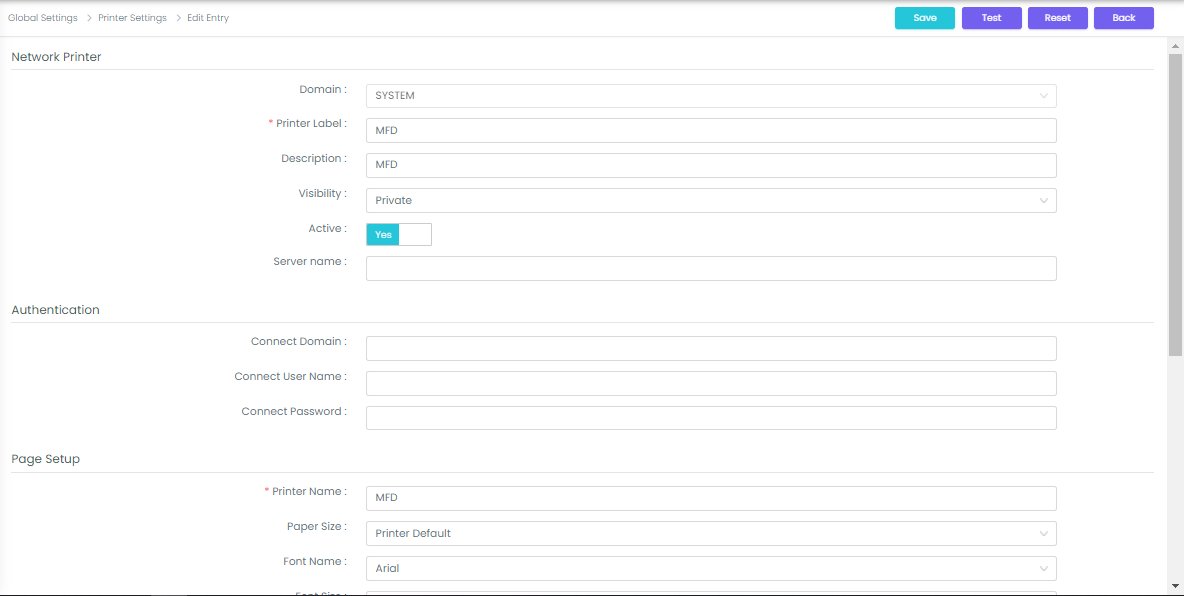
- Configure printer settings:
- Domain: Assign to SYSTEM or a specific child domain.
- Printer Label: Administrative display label (e.g.,
MFD_Accounting). - Printer Name: Must match the exact Windows printer name established in Step 1.
- Paper Size: Default paper dimension (Letter, A4, Legal).
- Font Name: Default font for banner pages (e.g.,
Arial).
- Click Test Print to verify end-to-end spooling.
- Click Save.
Step 3: Enabling Automated Printing for Users
Once registered, users or administrators can bind the printer to an account profile:
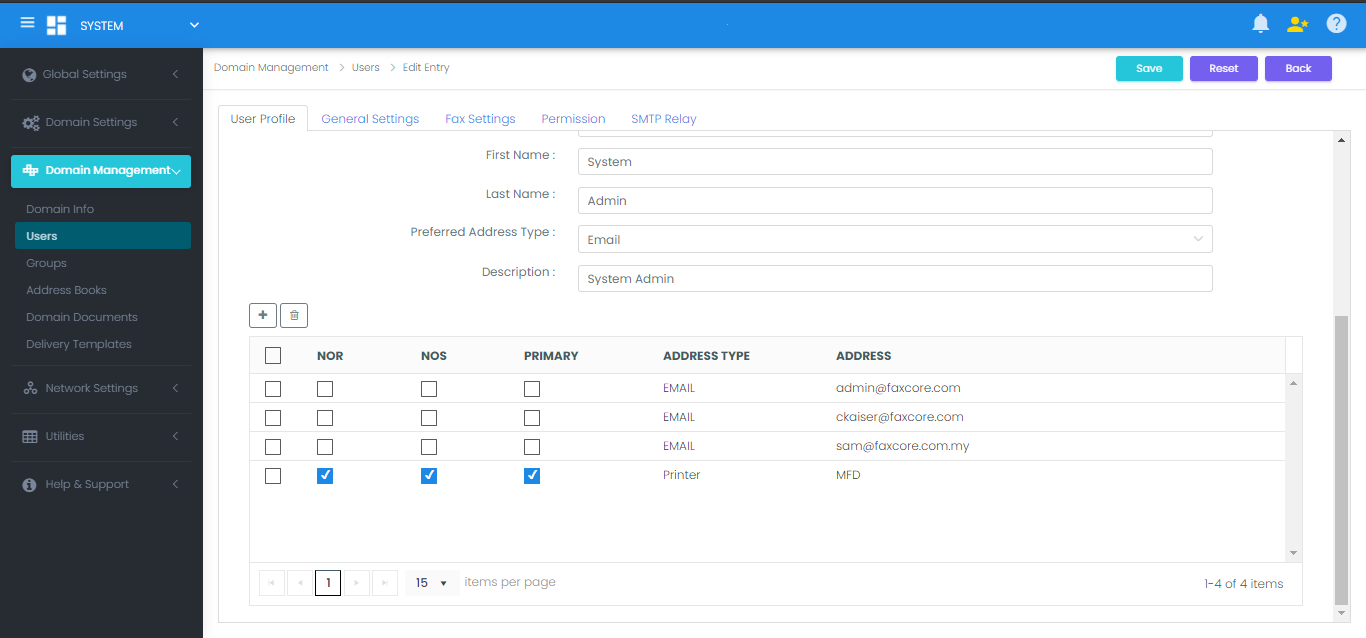
- Automatic Print on Receive: Faxes arriving for this user print automatically upon completion.
- Automatic Print on Send: Outbound confirmation banner pages print automatically.
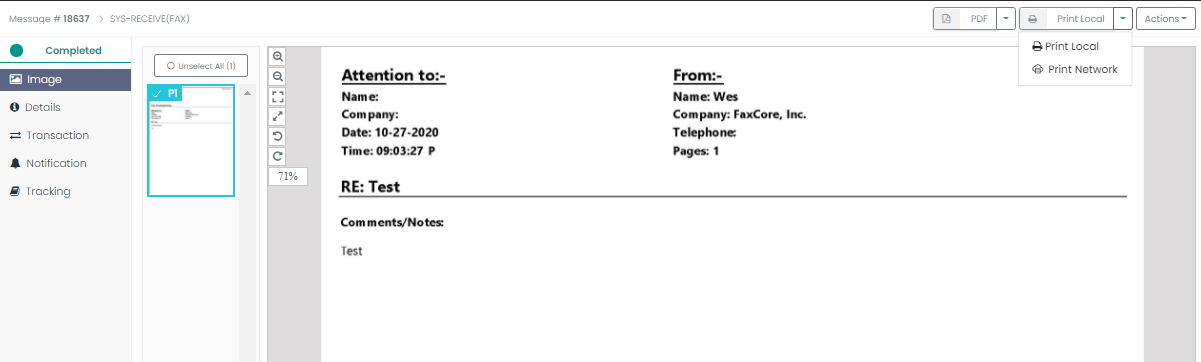
- Manual Print: Authorized users can click Print Network directly from the Web Client Message Viewer: