Reports & Usage Analytics
FaxCore Evolution eV6 provides an integrated operational reporting and business intelligence suite located under Utilities > Reports.
The reporting module gives system administrators, IT directors, and accounting teams complete visibility into telephony line utilization, departmental fax volumes, user transmission habits, and cost-allocation billing codes.
1. Navigating the Reports Module
Navigate to Utilities > Reports in the Admin Panel:
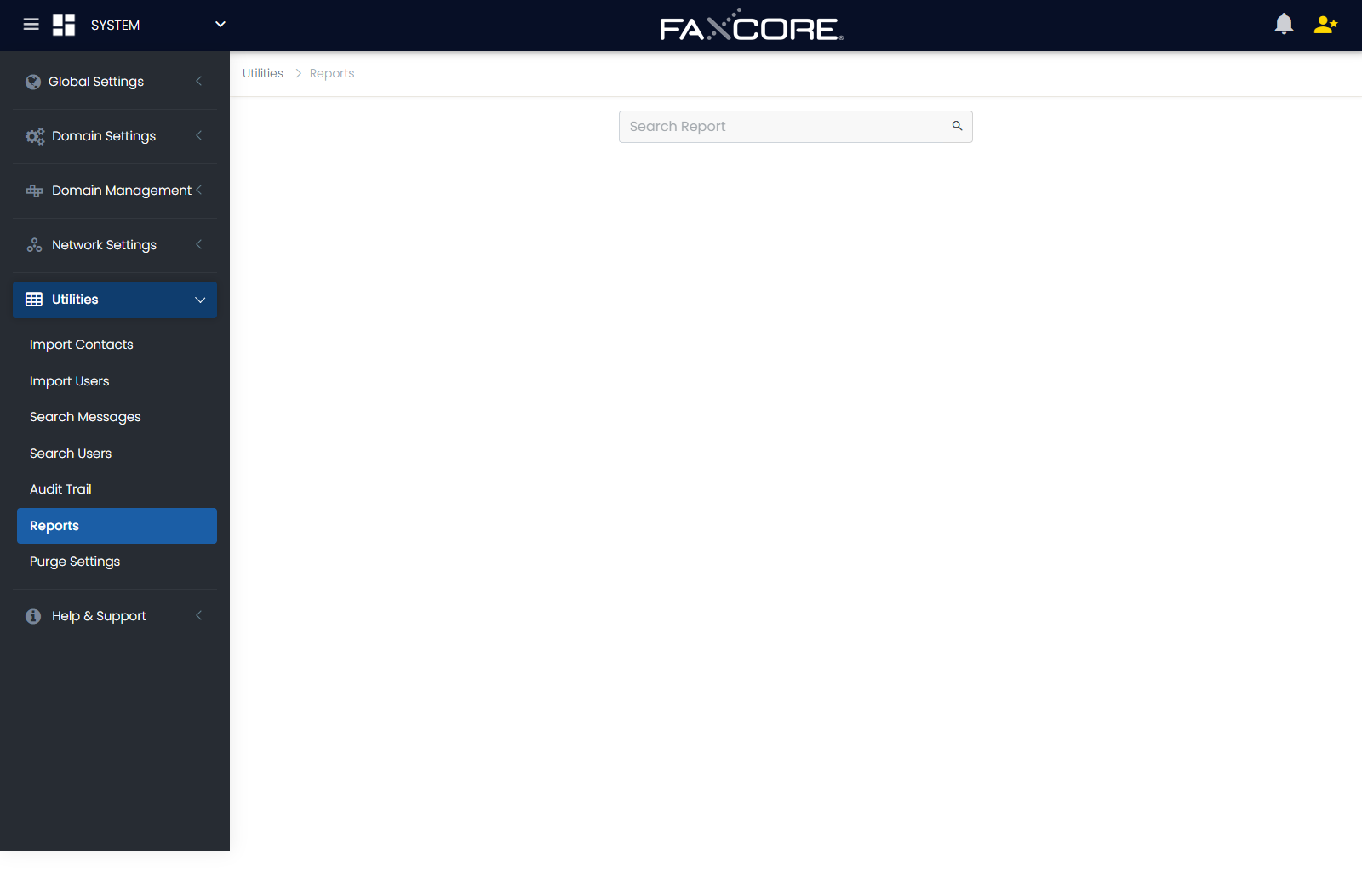
Report Selection & Generation Parameters
| Field | Configuration | Description |
|---|---|---|
| Domain | Dropdown | Scope reporting to the root organizational level or isolate data to a specific partitioned sub-domain. |
| Report Group | Dropdown | Categorical classification of the report (Activity Reports, Default Reports, Top 10 Rankings). |
| Report Title | Dropdown | The specific analytic report template to execute within the selected group. |
| Start Date / End Date | Date Picker | The exact date and time window for the report query. Supports custom ranges or standard billing periods (Daily, Weekly, Monthly, Quarterly). |
| Output Format | Dropdown | File format for immediate viewing or export (PDF, Excel, CSV, RTF, TIFF, MHTML). |
2. Report Categories & Templates
FaxCore organizes reports into three core functional groups:
A. Activity & Telephony Utilization Reports
Comprehensive throughput and channel utilization metrics:
- Total Outbound Volume: Aggregate transmitted faxes, total successfully delivered pages, and total transmission connect time.
- Total Inbound Volume: Inbound call counts, received page volume, and routing destination breakdown.
- Average Traffic Patterns: Hourly and daily volume distribution curves, critical for identifying peak traffic windows and line contention.
- Port / Channel Utilization %: Channel capacity utilization over time, used for telephony sizing and identifying when additional FoIP channels (SR140 / XCAPI) are required.
- Breakdown by User: Volume, page count, and duration grouped by individual FaxCore user account.
- Breakdown by Billing Code: Accounting reconciliation grouped by client matter number, cost center, or departmental chargeback code.
B. Transmission Status & Default Reports
Operational audit logs tracking delivery reliability:
- Successful Transmissions: Detailed transaction logs of all completed faxes with remote CSID confirmations.
- Failed Attempts & Error Breakdown: Telephony diagnostics categorized by failure reason (Line Busy, No Answer, Negotiation/Handshake Timeout, Fast Busy / Disconnected).
- Active & Scheduled Queue: In-progress transmissions and scheduled future broadcasts.
C. Top 10 Rankings & Anomaly Detection
High-level operational rankings to identify high-volume users and potential broadcast anomalies:
- Top 10 Senders: Users transmitting the highest volume of faxes and pages.
- Top 10 Destinations: Most frequently dialed external numbers and area codes.
- Top 10 Recipients: Internal users or DID groups receiving the highest inbound volume.
3. Export Formats & BI Integration
Reports can be rendered interactively within the administrative console or downloaded in multiple enterprise formats:
| Format | File Extension | Best Use Case |
|---|---|---|
.pdf |
Printable executive summaries with formal headers, pagination, and layout formatting. | |
| Microsoft Excel | .xlsx |
Multi-column spreadsheet data with pre-configured table headers for financial reconciliation. |
| Comma-Separated Values | .csv |
Raw tabular data optimized for automated ingestion into Business Intelligence (BI) pipelines (Microsoft Power BI, Tableau, Datadog). |
| Rich Text Format | .rtf |
Formatted documents for editing within Microsoft Word. |
| TIFF Image | .tif |
CCITT Group 4 rasterized document archive. |
| Web Archive | .mhtml |
Standalone HTML archive bundling all styles and tables for offline browser viewing. |
4. Generating a Report
- In the Utilities > Reports view, select your target Domain.
- Select the Report Group and specific Report Title.
- Set the Start Date and End Date for the reporting period.
- Choose the desired Output Format from the dropdown.
- Click Generate Report to process and render the output directly in the console or prompt for file download.