Tracking Keys & Dictionaries
Tracking Keys enable organizations to attach custom indexing and accounting metadata (such as Client Account Numbers, Patient MRNs, Matter IDs, or Project Codes) to inbound and outbound transmissions for auditing and billing reconciliation.
Configuring Tracking Keys
Navigate to Domain Settings > Tracking Config.
- Click the + (New) button:
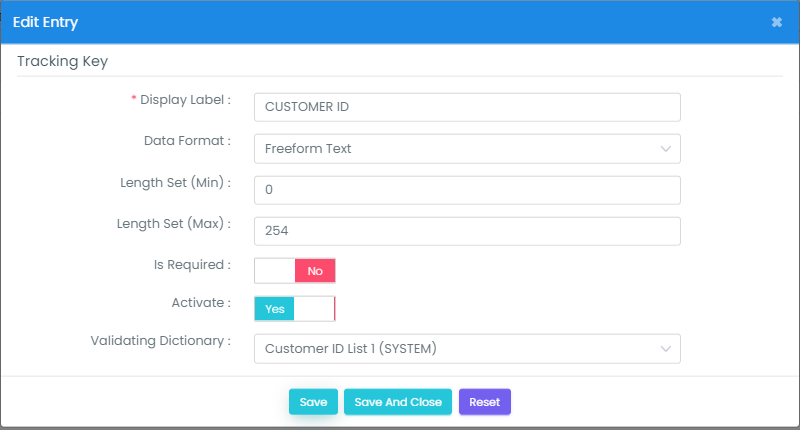
- Configure field definitions:
- Display Label: User-facing prompt (e.g.,
Matter IDorCustomer ID). - Data Format: Format restriction (Freeform Text, Numeric, Alphabetic, Alphanumeric).
- Length Set (Min / Max): Enforce character boundaries (e.g., Min 6, Max 10).
- Is Required: Set to Yes to prevent users from sending without entering metadata.
- Activate: Enable or disable the key.
- Validating Dictionary: Restrict input to a predefined list (see below).
- Display Label: User-facing prompt (e.g.,
- Click Save and Close.
Note
By default, domains support up to 3 tracking keys. This ceiling can be increased under Domain Settings > Domain Settings > Message Setting by adjusting Maximum Tracking Key.
Creating Validation Dictionaries
Validation dictionaries replace freeform typing with searchable dropdown selections in the Web Client compose window.
- Navigate to Domain Settings > Tracking Dictionary and click +:
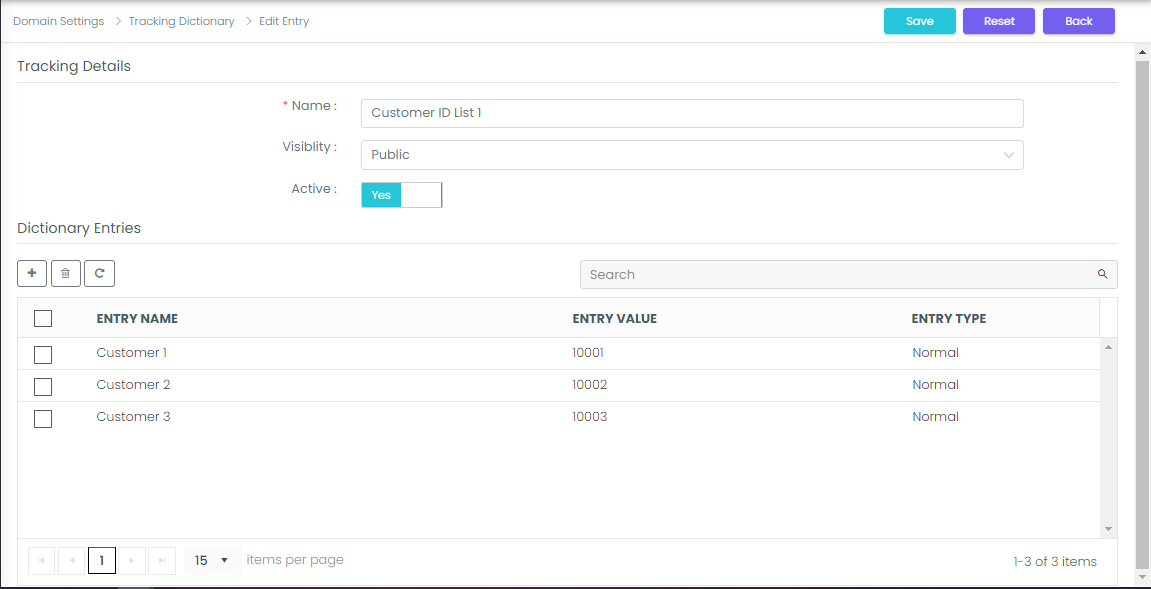
- Enter a Name (e.g.,
Client List), set Visibility to Public, and click + to add entries:- Entry Name: Display label visible to the user (e.g.,
Acme Corp). - Entry Value: Accounting code stored in the database (e.g.,
10001).
- Entry Name: Display label visible to the user (e.g.,
- Save the dictionary.
- Return to Domain Settings > Tracking Config, select the tracking key, and assign the new dictionary under Validating Dictionary.
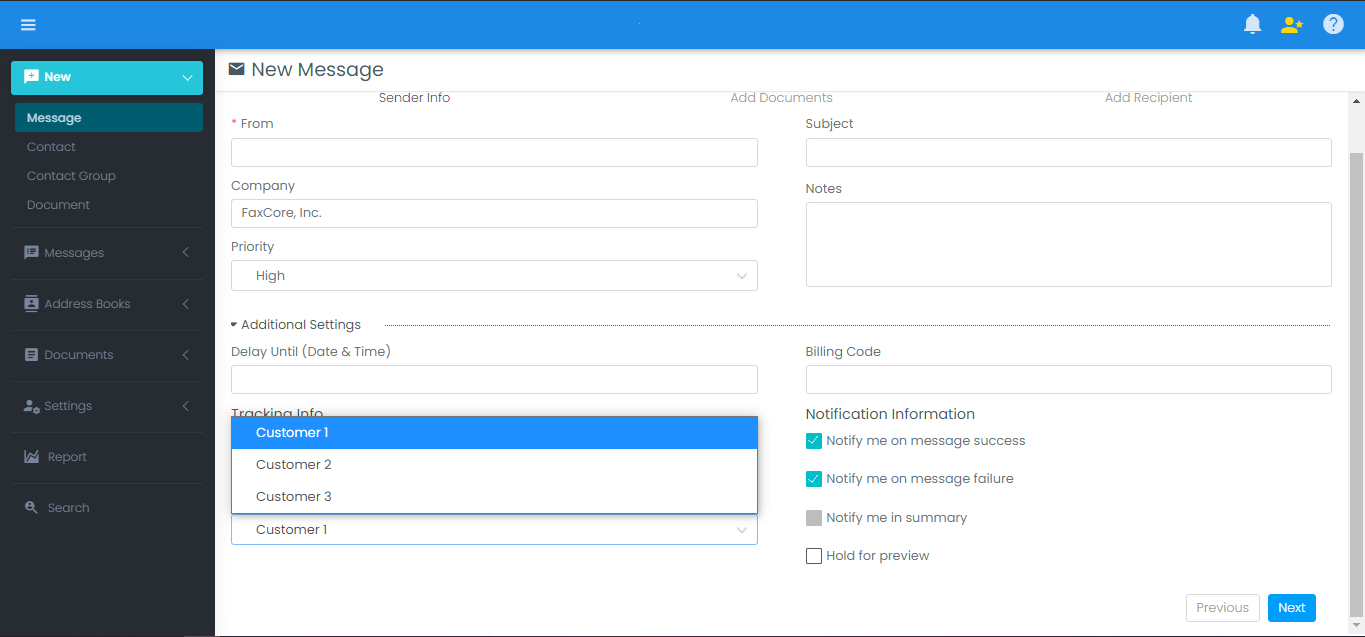
When users send faxes, the field renders as a standardized dropdown selector: