User Onboarding & Self-Registration
FaxCore Evolution eV6 includes an automated User Onboarding & Self-Registration framework under Manage > Onboarding. This feature streamlines new user rollouts by allowing administrators to generate secure, time-limited registration links rather than manually creating user credentials or relying exclusively on directory synchronization.
1. Overview & Workflow
The onboarding module allows administrators to create self-service registration campaigns for departments, external partners, or remote employees:
flowchart LR
    Admin["System Administrator\n(Admin Panel)"] -->|"1. Create Campaign\n& Set Expiration"| Gen["FaxCore Engine\nGenerates Signed URL Token"]
    Gen -->|"2. Distribute via Email / Intranet"| User["New User\n(Desktop / Mobile)"]
    User -->|"3. Open Link & Set Password"| Portal["Self-Service Portal\n(Onboarding Page)"]
    Portal -->|"4. Auto-Provision Account"| Domain["Target Domain\n(Permissions & Direct DIDs)"]
2. Creating an Onboarding Link
Navigate to Manage > Onboarding in the Admin Panel:
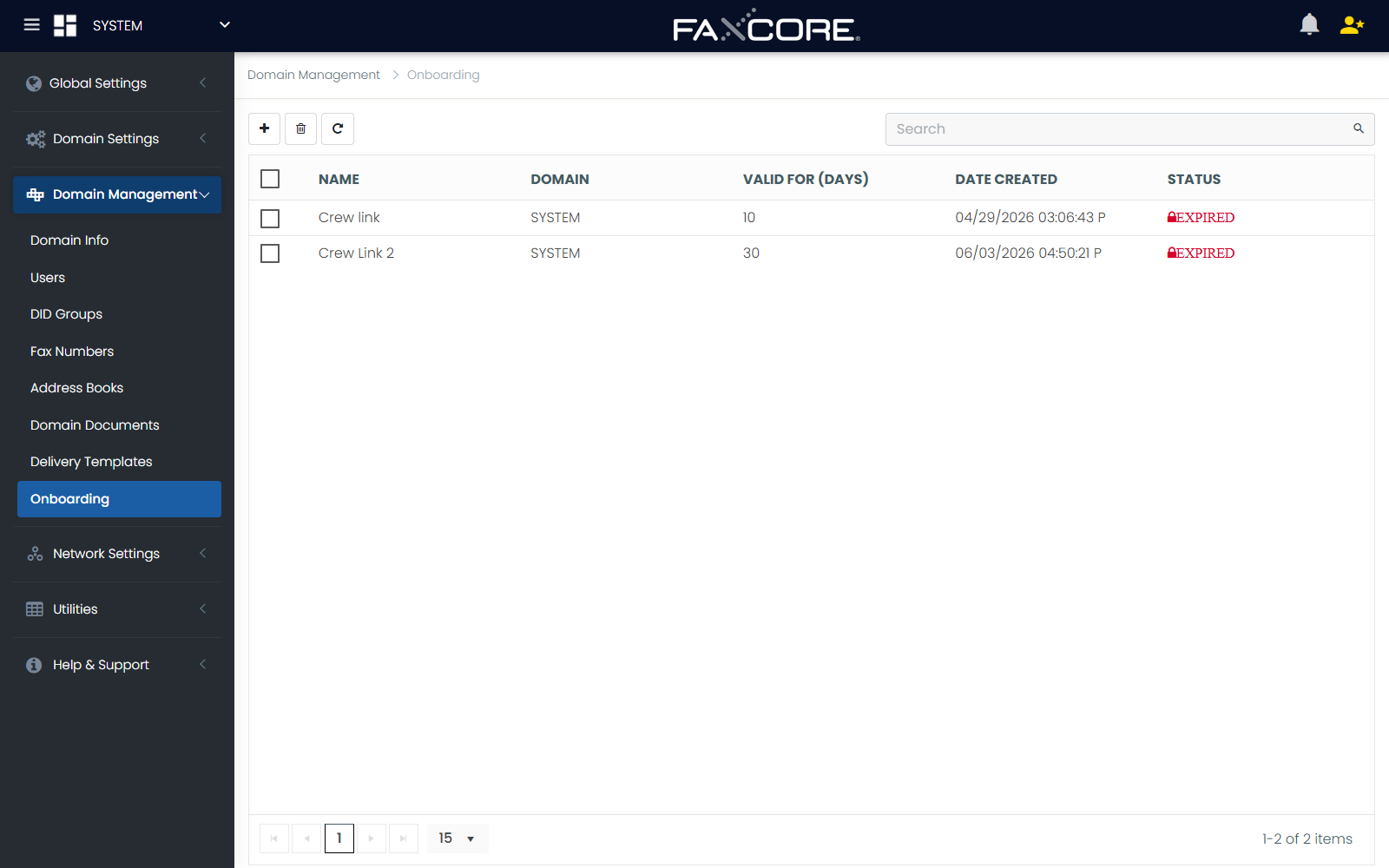
Configuration Steps:
- In the Onboarding management view, click Create New Entry.
- Configure the campaign details:
- Name: Descriptive campaign label (e.g.,
2026-Q4-Finance-NewHiresorRegional-Branch-Rollout). - Domain: The target organizational domain where registered users will be provisioned.
- Valid for (days): Token expiration window (e.g.,
7,14, or30days). Once the window expires, the registration link is automatically invalidated.
- Name: Descriptive campaign label (e.g.,
- Click Save And Close.
3. Distributing Registration Links
- Select the created campaign entry from the Onboarding grid.
- The system generates a cryptographically signed registration URL:
https://<fax-server-fqdn>/user/Onboarding/Register?token=eyJhbGciOi... - Click Copy To Clipboard to copy the URL.
- Send the link to eligible users via email invitation, corporate intranet, or HR welcome packets.
4. User Self-Registration Experience
When the recipient opens the link:
- They are presented with a branded FaxCore Account Setup page.
- The user enters their full name, corporate email address, and creates a secure password adhering to domain complexity policies.
- If SAML 2.0 SSO is enabled, the account binds to the user's corporate identity.
- The user is immediately provisioned into the assigned domain with all default permissions, address books, and assigned cover sheets.
5. Monitoring & Revocation
The Onboarding Grid displays real-time status for all invitation campaigns:
| Column | Description |
|---|---|
| Name | Onboarding campaign title. |
| Domain | Target provisioning domain. |
| Valid For (Days) | Original validity duration. |
| Date Created | Timestamp of campaign creation. |
| Status | Current state (Active, Expired, or Revoked). |
Tip
Revoking Links Early If an onboarding link is compromised or no longer needed, select the entry and click Delete. All future attempts to register using that token will be immediately rejected with an Invalid/Expired Token alert.