SAML 2.0 Single Sign-On (SSO)
FaxCore Evolution eV6 supports enterprise SAML 2.0 (Security Assertion Markup Language) authentication, enabling seamless Single Sign-On (SSO) for the FaxCore Web Client and Administrator Portal. With SAML 2.0 enabled, organizations can centralize authentication, enforce Multi-Factor Authentication (MFA), and automate identity federation through enterprise Identity Providers (IdP).
Overview & Architecture
When SAML 2.0 is configured, FaxCore acts as the Service Provider (SP) and delegates user authentication to your designated Identity Provider (IdP) (e.g., Microsoft Entra ID / Azure AD, Okta, PingIdentity, or Active Directory Federation Services).
sequenceDiagram
    autonumber
    actor User as User Browser
    participant SP as FaxCore eV6 (SP)
    participant IdP as Identity Provider (IdP)<br/>(Entra ID / Okta / ADFS)

    User->>SP: 1. Access FaxCore Web or Admin Portal
    SP-->>User: 2. Redirect with SAML AuthN Request
    User->>IdP: 3. Authenticate & Complete MFA
    IdP-->>User: 4. Issue Signed SAML Assertion Token (XML/JWT)
    User->>SP: 5. POST SAML Token to ACS Endpoint
    SP->>SP: 6. Validate X.509 Signature & Map Claims
    SP-->>User: 7. Authenticated Session Established
Configuring SAML 2.0 in FaxCore
SAML SSO settings are configured per organizational domain under Domain Settings > SAML SSO Settings.
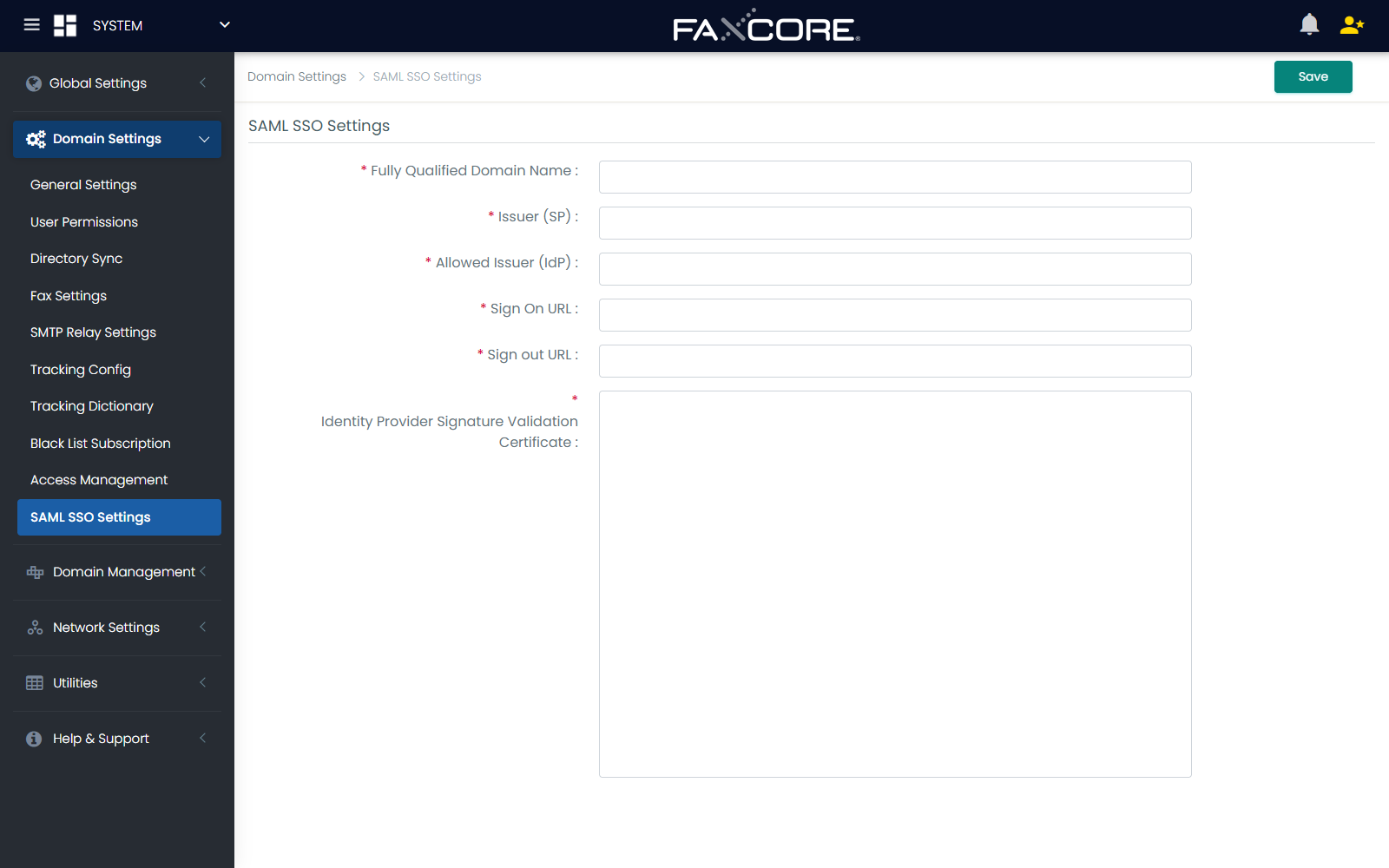
Configuration Fields
| Setting | Type | Description & Best Practice |
|---|---|---|
| Fully Qualified Domain Name | Text | The public FQDN of the FaxCore server (e.g., fax.yourcompany.com). Used to construct the Assertion Consumer Service (ACS) endpoint. |
| Issuer (SP) | Text | The unique Service Provider Entity ID identifying FaxCore to your IdP (e.g., https://fax.yourcompany.com/saml2). |
| Allowed Issuer (IdP) | Text | The Entity ID / Issuer URI provided by your Identity Provider (e.g., https://sts.windows.net/tenant-id/ or https://yourcompany.okta.com). |
| Sign On URL | URL | The IdP Single Sign-On service endpoint where FaxCore redirects unauthenticated users for login. |
| Sign Out URL | URL | (Optional) The IdP Single Logout (SLO) endpoint where users are redirected upon logging out of FaxCore. |
| Certificate Validation Mode | Dropdown | Cryptographic trust validation policy for the IdP signing certificate: • PeerOrChainTrust (Recommended): Validates against local certificate store or root authority. • ChainTrust: Requires full cryptographic certificate authority chain validation. • PeerTrust: Validates explicit certificate matching in Trusted People store. • None: Disables chain validation (testing environments only). |
| Revocation Mode | Dropdown | Certificate revocation verification method: • NoCheck: Skips CRL/OCSP checks. • Online: Verifies real-time certificate revocation against IdP OCSP/CRL endpoints. • Offline: Checks locally cached CRL lists. |
| Identity Provider Signature Validation Certificate | File Upload | Public X.509 signing certificate (.cer or .pem) exported from your IdP. FaxCore uses this certificate to verify the cryptographic signature of incoming SAML tokens. |
| Signing Certificate | File Upload | (Optional) Private PKCS#12 certificate (.pfx) used if your IdP requires FaxCore to sign outgoing SAML AuthN requests. |
| Signing Certificate Password | Password | The private key password for the uploaded .pfx signing certificate. |
Identity Provider (IdP) Setup Guidelines
Microsoft Entra ID (Azure AD) Configuration
- In the Microsoft Entra Admin Center, navigate to Enterprise Applications > New Application > Create your own application.
- Select Integrate any other application you don't find in the gallery (Non-gallery).
- Under Set up single sign-on, select SAML.
- Configure the Basic SAML Configuration:
- Identifier (Entity ID): Enter the value matching Issuer (SP) in FaxCore (e.g.,
https://fax.yourcompany.com/saml2). - Reply URL (Assertion Consumer Service URL):
https://<fax-server-fqdn>/admin/Account/SamlConsume https://<fax-server-fqdn>/user/Account/SamlConsume - Sign on URL:
https://<fax-server-fqdn>/login/
- Identifier (Entity ID): Enter the value matching Issuer (SP) in FaxCore (e.g.,
- Under Attributes & Claims, ensure the following claims are mapped:
nameidentifier/Name ID\(\rightarrow\)user.userprincipalname(oruser.mail)emailaddress\(\rightarrow\)user.mailgivenname\(\rightarrow\)user.givennamesurname\(\rightarrow\)user.surname
- Download the Certificate (Base64) from Section 3 and upload it to FaxCore under Identity Provider Signature Validation Certificate.
- Copy the Login URL and Azure AD Identifier into FaxCore's Sign On URL and Allowed Issuer (IdP) fields.
Okta Configuration
- In the Okta Admin Console, go to Applications > Create App Integration > SAML 2.0.
- Set Single sign-on URL to:
https://<fax-server-fqdn>/user/Account/SamlConsume - Set Audience URI (SP Entity ID) to match your FaxCore Issuer (SP).
- Set Name ID format to
EmailAddressand Application username toEmail. - Under SAML Signing Certificates, download the X.509 Certificate and upload it into FaxCore.
Global SAML Summary & Monitoring
System administrators can view the real-time SAML 2.0 federation status across all domains under Global Settings > Server Settings > SAML2 Summary.
The SAML2 summary matrix displays:
- Domain Name: Partitioned organizational domain.
- FQDN: Bound server hostname.
- Certificate Status: Validity and expiration countdown of the IdP signature validation certificate.
Tip
Automatic Account Provisioning When SAML SSO is used in combination with Active Directory Sync or User Onboarding, user permissions, default cover sheets, and DID routing lines are mapped automatically upon initial single sign-on.